Many companies pay for LinkedIn™ Sales Navigator, yet plenty of licence holders use little beyond the search box. They run a broad search, save a few names and return when they need more prospects.
Used properly, Sales Navigator can give sales teams a much clearer way to find and organise potential buyers. This guide explains how to use LinkedIn™ Sales Navigator for prospecting, from building useful searches and lead lists to acting on alerts and creating a simple weekly routine.
What Is LinkedIn™ Sales Navigator?
LinkedIn™ Sales Navigator is LinkedIn™’s paid prospecting platform for salespeople and sales teams. It provides advanced lead and account search, saved lists, alerts and InMail alongside other tools designed to help users identify and keep track of potential customers.
The exact features available can therefore vary between licences, but the prospecting principles in this guide apply across the platform. The real value comes from knowing who you want to find and developing a routine for working those prospects once they appear.
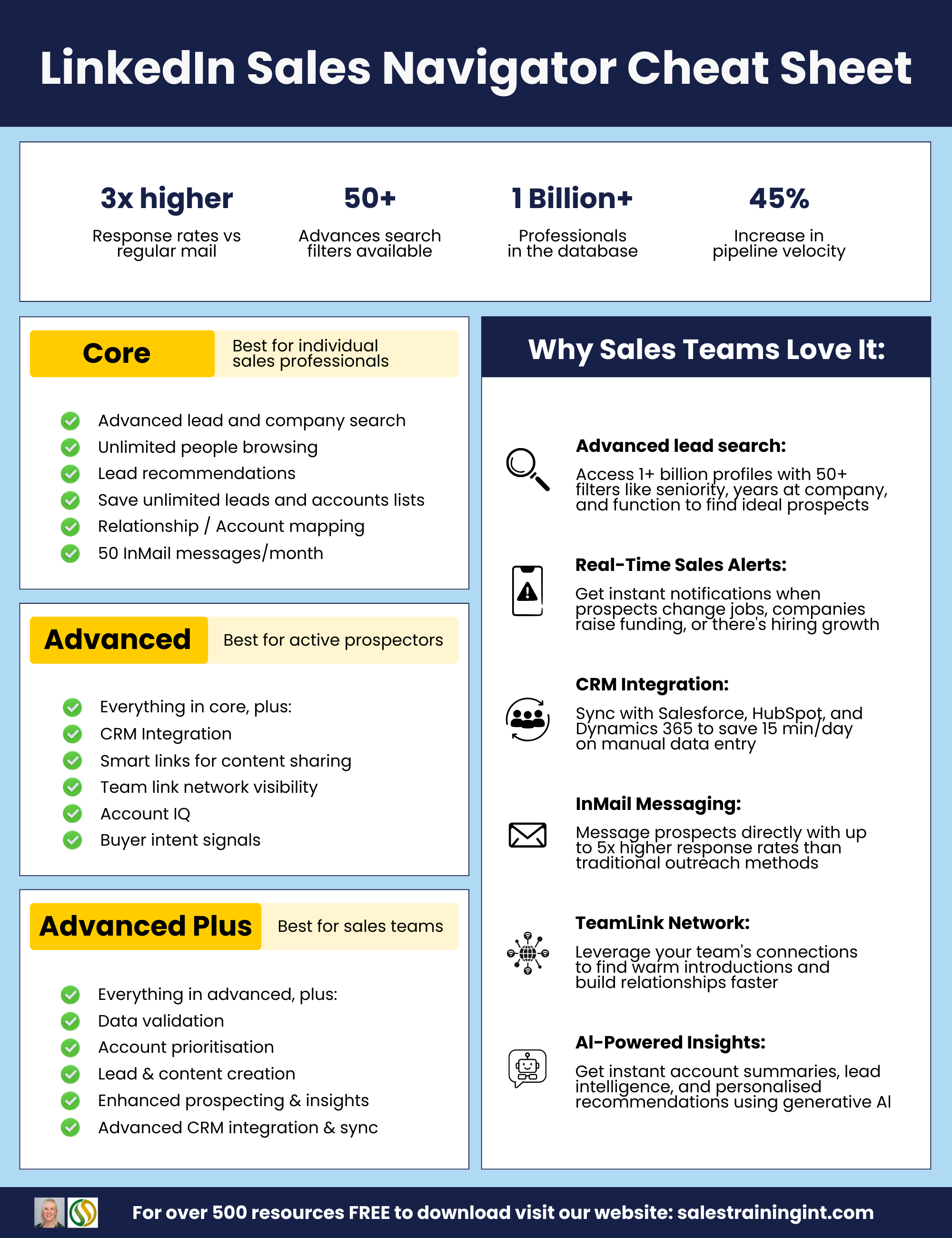
There are currently three Sales Navigator plans:
OPTION 01
CORE
Core is designed around individual prospecting.
OPTION 02
ADVANCED
Advanced adds team features such as shared lists and Smart Links.
OPTION 03
ADVANCED PLUS
Advanced Plus includes CRM integration and embedded workflows.
Start With Your Ideal Customer Profile, Not The Filters
Before opening Sales Navigator search, get clear on the customers you actually want.
Look at the businesses where you tend to win good work. Consider their industry and approximate company size, then identify the roles normally involved in buying what you sell. You should also think about events that make your offer more relevant, such as expansion, recruitment or a change in leadership.
This is where good client profiling matters. Sales Navigator can make a well-defined target audience easier to find, but broad targeting will still produce broad results.
Once that profile is clear, the filters become much more useful. Their job is simply to translate what you already know about your ideal prospect into a workable search.
Master the Sales Navigator Search Filters That Matter
There are plenty of Sales Navigator search filters available, and you do not need to use every one. Most prospecting searches can be made considerably more useful by concentrating on a smaller group.
Who They Are
Job title is an obvious starting point, but avoid relying on a single title. Two people doing almost identical jobs may describe themselves very differently.
Sales Navigator supports Boolean operators such as OR and NOT, which can help account for those variations. A search could look something like:
(“head of sales” OR “sales director”) NOT assistant
You can then use seniority and function to narrow the results further. Boolean operators should be written in capital letters, and quotation marks can be used around exact phrases.
Where They Work
Industry, company headcount and geography help remove businesses that sit outside your ideal customer profile.
These filters are particularly useful when a broad job-title search produces thousands of people. A salesperson covering UK manufacturing companies with 50 to 500 employees, for example, has a much more usable starting point than someone searching for every Sales Director on LinkedIn™.
Do not narrow the search simply for the sake of reaching a small number, though. Each filter should reflect a genuine reason why that prospect is more relevant.
Look for Signs Of Timing
Some Sales Navigator filters help identify people who may have a current reason to talk.
LinkedIn™ currently allows users to filter for people who changed jobs in the last 90 days and those who have posted on LinkedIn™ in the last 30 days. A recent job move may point to new priorities, while recent activity gives you something current to understand or engage with before making contact.
Once you have a search that consistently produces suitable prospects, save it. A small number of carefully built saved searches is far more useful than repeatedly starting from scratch.
One of the easiest ways to waste Sales Navigator is to save a search containing thousands of loosely relevant people, work ten of them and decide that the platform is not producing results.
Build Lead Lists & Account Lists
Search helps you find people. Lists help you decide who deserves attention next.
A lead list contains individual people you want to keep track of, while an account list organises target companies. Rather than saving every reasonable search result, keep a live group of prospects that can realistically be worked.
For many salespeople, a list of around 100 to 200 active leads is more manageable than a database containing thousands of names nobody has looked at for months. The right number will depend on your sales cycle and prospecting workload.
Account lists are particularly useful in B2B sales because one company may involve several people in a purchasing decision. Instead of treating each lead as a separate opportunity, you can begin mapping the people who influence a deal within the same business.
That matters in longer B2B sales processes, where a salesperson may need relationships with more than one stakeholder before an opportunity progresses.
Your saved leads and accounts also shape much of the information Sales Navigator brings back to you, which is why list quality matters long after the initial search.
Use Alerts As Reasons To Get in Touch
Sales Navigator alerts can surface changes around the people and companies you are following. These may include job moves, company updates and new posts from saved leads.
The useful part is not the alert itself. It is having a current reason to start a relevant conversation.
Imagine a saved prospect has moved into a new Head of Sales role. A weak message would be:
“Congratulations on the new role. Would you be interested in a demo?”
A better opening might be:
“Congratulations on the new role, Alex. I noticed you have moved into a team that has been expanding quite quickly. How are you finding the change from inheriting an established sales process to deciding what needs updating?”
The second message gives the prospect something genuine to respond to. Our guide to LinkedIn™ outreach messages goes further into connection requests, opening messages and follow-ups.
InMail & Smart Links: Use Sparingly, Use Well
InMail allows Sales Navigator users to contact people they are not connected with. That can be useful when there is a strong reason to reach someone directly, but it should not become the default approach for every prospect.
Where possible, building some familiarity before sending a sales message usually creates a better starting point. If you do use InMail, keep the subject line short and make the opening about a relevant issue rather than launching straight into your offer.
Sales Navigator currently allocates InMail credits across its plans, although allowances can change, so there is little value in treating them as something to spend simply because they are available.
Smart Links are available with Advanced and Advanced Plus. They allow users to share content such as presentations or web pages through a trackable link and see engagement data. They are useful when a prospect has a genuine reason to receive the content, rather than as a disguised way of forcing somebody into a sales sequence.
A Simple Weekly Sales Navigator Routine
Sales Navigator becomes far more useful when it forms part of a normal prospecting routine rather than something you open when the pipeline looks quiet.
| When | What To Do |
| Monday | Review new results from your saved searches and add the strongest matches to your active lead lists. |
| During The Week | Check alerts from saved leads and accounts. Act on the few updates that create a genuine reason for contact. |
| Friday | Remove leads that are no longer relevant, review any outstanding activity and update your CRM with useful conversations or changes. |
This can take around 30 minutes of focused work across the week, depending on the size of your territory.
The important part is consistency. A smaller list that is reviewed regularly will usually be more useful than hundreds of saved prospects receiving no attention.
Common Sales Navigator Mistakes To Avoid
01
Treating it like a scraping tool
Sales Navigator is designed for prospecting inside LinkedIn™. Automated scraping and bulk activity can also conflict with LinkedIn™’s platform rules.
02
Making searches too broad
A list of several thousand loosely matched prospects is difficult to work properly.
03
Connecting and immediately pitching
Acceptance does not mean someone has agreed to a sales conversation.
04
Ignoring alerts
Saving leads without watching what changes removes much of the value of maintaining lists.
05
Letting lists go stale
Remove people who have moved, stopped fitting the profile or no longer deserve active attention.
06
Expecting Sales Navigator to repair a weak profile
Prospects may still look at your LinkedIn™ profile before replying. Take time to set up your LinkedIn™ profile properly before increasing outreach.
FAQs
Is LinkedIn™ Sales Navigator Worth It?
Sales Navigator can be worth using for B2B teams that prospect regularly and need better targeting than standard LinkedIn™ search provides. Its value depends on whether salespeople actually use the filters, lists and alerts as part of their working routine.
What Is the Difference Between LinkedIn™ Premium and Sales Navigator?
LinkedIn™ Premium covers several subscription products aimed at different user needs. Sales Navigator is specifically designed for sales prospecting and includes specialist lead and account search features, prospect lists and sales-focused alerts.
Do I Need Training to Use Sales Navigator?
You do not need training simply to operate the platform. Most features are straightforward to find.
The harder part is knowing who to target, how to build searches that produce useful prospects and what to do with those prospects afterwards. Sales Navigator training can help teams develop those skills and use the platform more consistently.
Can I Use Sales Navigator for Lead Generation Without Annoying People?
Yes. Good Sales Navigator lead generation relies on careful targeting and relevant outreach rather than sending high volumes of generic messages.
Use the platform to understand the prospect first, then approach them with a genuine reason for starting a conversation.
Get More From LinkedIn™ Sales Navigator
At Sales Training International, we provide practical Sales Navigator training for sales teams, delivered live online or in-house. We also offer wider LinkedIn™ training for teams developing their social selling approach, for more information read our Sales Navigator Guide.
Call our team on 01704 889325, email us at info@salestrainingint.com or fill in our online contact form to discuss the right training for your salespeople.