
LinkedIn™ is no longer just a networking platform.
Whether you’re searching for a new role or looking to generate leads for your business, your profile acts as a free website, a shop window that introduces you to potential employers, clients and collaborators. A well optimised profile builds trust, demonstrates your expertise, and encourages meaningful connections.
This guide will walk you through each part of your LinkedIn™ profile. You’ll learn how to:
- Present yourself professionally and clearly
- Improve visibility to the right audience
- Highlight your skills and achievements
- Create a profile that encourages engagement
By the end, you’ll have a polished, effective profile that works for you whether your goal is career growth or lead generation. For more information about our LinkedIn™ training, call us on +44 (0) 1704 889325 or email us at info@salestrainingint.com.
Step 1: Add A LinkedIn™ Banner
Your banner or background photo is the first thing people see when visiting your profile. Many profiles stick with the default grey background, which doesn’t show your value.
A strong banner should communicate:
- What you do
- Who you help
- How you make a difference
You don’t need a professional designer. Canva offers templates that can be customised quickly. However, If you work for a company, check whether your marketing team has a banner you can use.

Step 2: Upload A Professional Profile Photo
Your profile photo should be a head and shoulders image that’s clear, recent, and approachable. We suggest avoiding holiday, casual or old photos. Updating your photo yearly ensures it remains recognisable and reflects how you appear in real life.
Step 3: Verification Badge & Name Pronunciation
LinkedIn™ verification builds trust by confirming you’re a real person. With the rise of fake profiles, this is increasingly important. In the UK, you’ll need a passport to verify who you are, this will ensure that businesses and individuals can trust you and your profile.
You can also record the pronunciation of your name on your mobile. This is especially helpful if your name is difficult to pronounce and ensures others know how to say it correctly.
Step 4: Custom URL & Contact Information
A clean LinkedIn™ URL is easy to remember and improves searchability. You can do this by navigating to ‘edit public profile and URL’ in your profile settings. Replace random numbers or letters with your name and maybe company name.
Next, it’s important to keep your contact details current and consider including a website link such as:
- Your company website
- A newsletter signup
- A booking link for consultations
- An event registration page
A well-chosen link gives visitors immediate value and encourages engagement.
Step 5: Write A Strong Headline
Most users will notice that LinkedIn™ defaults your job title as the headline of your profile, but you can do more to optimise this. One important aspect to avoid is vague or fluffy phrases. Instead, be specific and include keywords that will help your profile appear in searches.
A strong headline should tell people what you do and why you’re relevant.
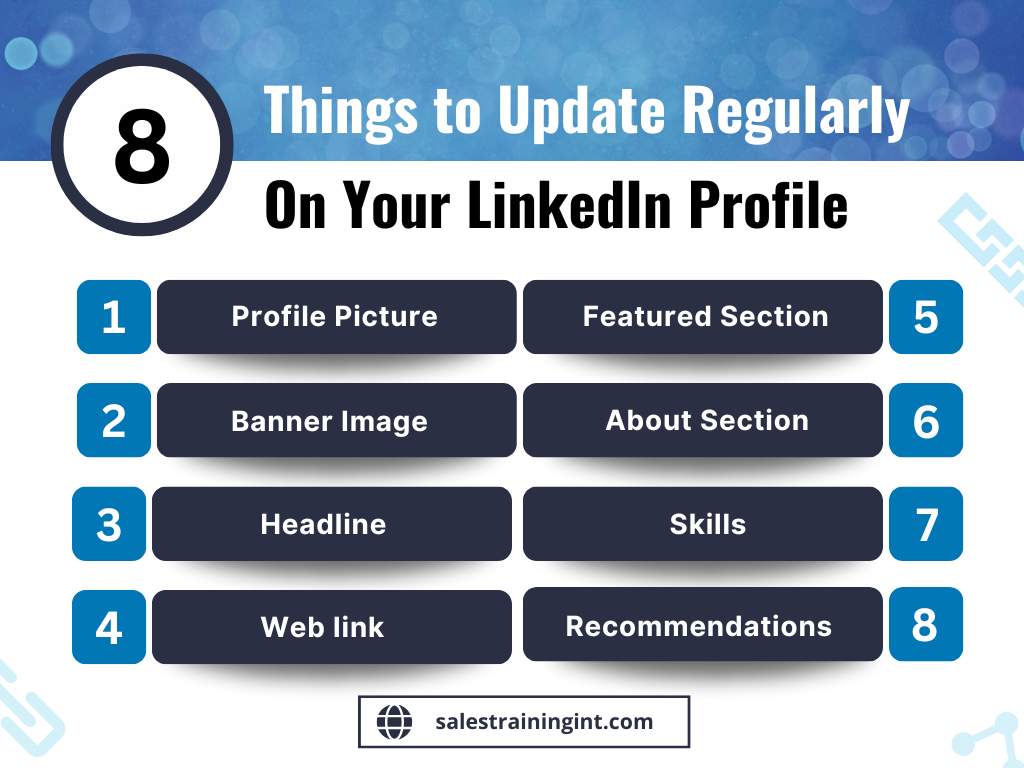
Step 6: Craft A Compelling ‘About’ Section
Your ‘About’ section should be written in the first person and easy to read.
Focus on:
- Who you help
- How you help them
- The results you deliver
Consider your ideal reader, whether a client or employer. You could use short paragraphs or bullet points where helpful, and include a small personal detail to make your profile more approachable. To finish, add a clear call to action such as your email or links to resources.
Step 7: Turn On The Featured Section
The featured section allows you to showcase your work and achievements.
You can include items such as:
- Lead magnets, guides, or free resources
- CVs or references
- Media such as PDFs or images
- Key achievements or case studies
- Links to websites or your newsletter
This section demonstrates credibility and gives tangible proof of your skills or services.
Step 8: Adding Services & Open To Work Frames
Services highlight what you offer, if LinkedIn™ ‘s pre-set options don’t perfectly match your role, adding these sections signals your expertise and availability.
The open to work frame indicates your availability for work, collaborations or career opportunities. To add the #opentowork frame, you can select it from the ‘frames’ options after clicking on your profile photo.
Step 9: Work Experience Section
In this section, it’s important to focus on recent and relevant roles.
Include:
- The key skills you used
- Any media, such as brochures, weblinks etc
- Your achievements and responsibilities
Try to avoid listing every job from your early career. This section should closely complement your ‘About’ section and give context to your professional history.
Step 10: Education Section
In this section, you should include higher education, relevant qualifications, and professional certifications. There’s an option to upload media, so here you can display certificates or project work which can demonstrate your value.
To keep your educational information concise, avoid listing minor qualifications or junior school details, as these aren’t usually necessary.
Step 11: Volunteering Section
Volunteering can influence both employers and clients. You can highlight roles with charities, schools, sports clubs or other organisations. Even small contributions can help you stand out.
Step 12: Skills Section
In this section you can add up to 100 skills. Here you can display things that you’re good at, and what you’d like employers or clients to see. LinkedIn™ values this section, it improves searchability, and allows others to endorse your expertise.
Step 13: Languages Section
This section is particularly useful if you work internationally or with diverse clients. It’s important to keep your languages up to date to enhance your credibility.
Step 14: Recommendations Section
You can request recommendations from colleagues, clients, and collaborators. Regularly updating this section demonstrates trustworthiness, and giving recommendations to others strengthens professional relationships and your network.
Step 15: Build Your Network Strategically
Here at Sales Training International, we promote that connections really do matter. Evaluate potential connections carefully. Employers and clients often check profiles before making decisions, so a strong, relevant network increases your credibility and visibility.
Step 16: Bottom of Profile Insights
Look at the top voices, companies, and groups that others follow. These insights reveal common ground, shared interests, and potential networking opportunities that can help lead generation or job applications.
Improve Your LinkedIn™ With Sales Training International
A strong LinkedIn™ profile is more than just a digital CV. It’s your shop window to potential clients, employers, and collaborators, demonstrating your expertise, building trust, and encouraging meaningful connections. Completing each section thoughtfully gives you a professional edge, whether you’re seeking a new role or generating leads.
At Sales Training International, we help you take your LinkedIn™ presence to the next level. Our LinkedIn™ training and LinkedIn™ sales navigator training provide practical strategies to optimise your profile, attract the right connections and maximise opportunities. We also offer international sales training, customised consultancy, engaging face to face training courses, and flexible virtual training designed to suit your schedule and objectives.
Investing your time in your LinkedIn™ profile is just the first step. Partnering with experts ensures that your profile works harder for you, helping you stand out in a competitive market and connect with the right people. Take control of your professional image today and let us guide you to LinkedIn™ success.
To learn more, watch our YouTube video on setting up your LinkedIn™ profile below, or get in touch with our team. Call us on +44 (0) 1704 889325, email info@salestrainingint.com, or complete our contact form to get started.